
RhinoGuard flagship

My Device
Settings → General → About → tap the part number beside Model Number to reveal the A-number.
Start typing, choose a listed route, or complete all three browse fields. Nothing is assumed.
RhinoGuard flagship

ArmorPro route
RhinoGuard flagship
RhinoGuard route

Privacy glass

TitaniumGuard Ascend
TitaniumGuard Ascend
TitaniumGuard Ascend

Galaxy Watch Ultra metal

47mm protective case

Galaxy Watch 4–6 band collection

TitanForge 22mm
TitanForge 26mm

DuraShield protection

ArmorShield Slide

TitanShield Pro
RhinoGuard flagship
RhinoGuard flagship

RhinoGuard Tactical 360 Pro

RhinoGuard Apex Shield

RhinoGuard Apex Rotation

RhinoGuard Regent

RhinoGuard Vanguard

RhinoGuard Vertex

ChargeStation 7
Live catalog match
Use cases
Build an iPad accessory system in the right order: verify the model, choose a RhinoGuard or WorkForce case, match the screen surface to your priorities, add the passive ApexTouch stylus and plan how you carry everything together.
 Verified product context
The best iPad setup is a system, not a pile of accessories. The case controls physical fit. The screen surface changes visibility and writing feel. A passive stylus offers simple touchscreen input without electronics. Your carrying method determines which handles, stands and straps will actually earn their place.
Short answer: Verify the exact iPad model or A-number first. Choose RhinoGuard Pro, ArmorPro or WorkForce for the way the iPad will be handled; select UltraShield Privacy or PaperTouch Pro according to your screen priority; add ApexTouch Universal Precision Stylus when passive, no-pairing input suits your needs; then choose a strap, sleeve or bag around the complete setup.
Starting with a stylus color or screen finish can lead to a mismatch if the base case is for the wrong generation. iPad names repeat across years, and the same display-size label can appear on devices with different dimensions or camera layouts. The model number—often beginning with “A”—is a more reliable shopping key than appearance alone.
Find it in Settings → General → About → Model Number. You may need to tap the part number once to reveal the A-number. Match that result to the compatibility list on every product page. Do not assume that one iPad Air 11-inch, iPad Pro 11-inch or similarly named accessory fits another generation unless both are explicitly listed.
| Layer | Avontic option | Choose it when | Compatibility check |
|---|---|---|---|
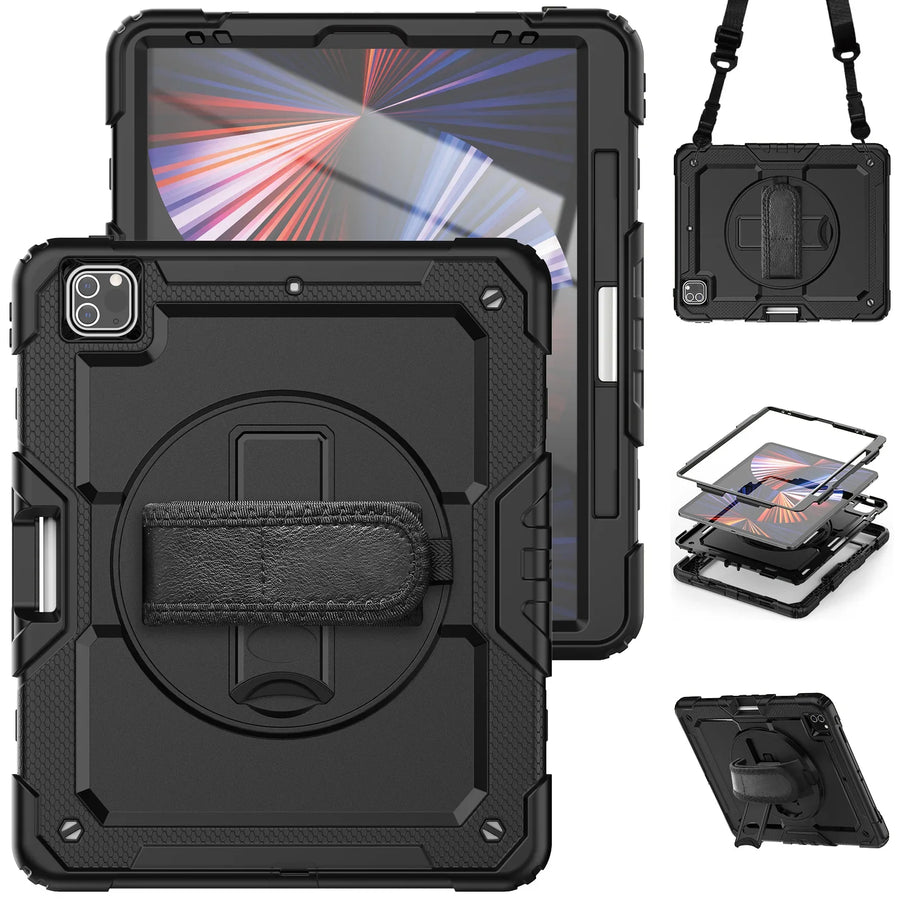
| Case | RhinoGuard Pro | You want a 360° hand strap, built-in kickstand and included shoulder strap | Exact iPad model or A-number and selected variant |
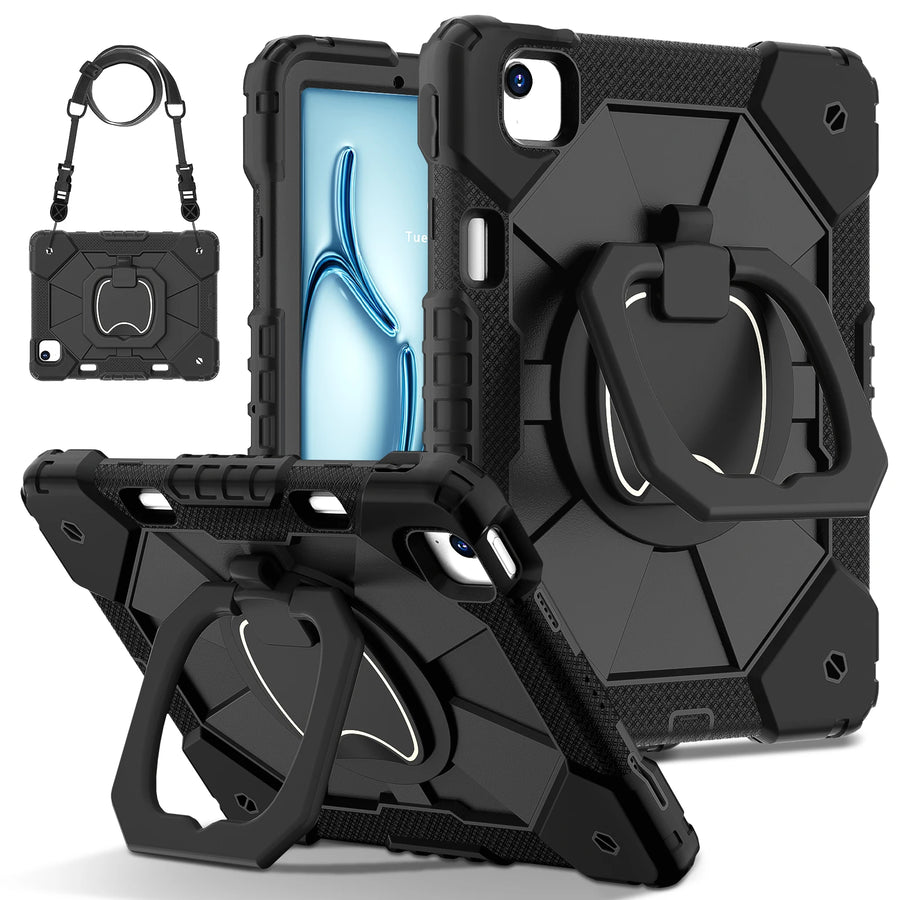
| Case | RhinoGuard ArmorPro | You want a rotating hand strap and built-in kickstand in the ArmorPro format | Exact iPad model or A-number; review included accessories |
| Case | WorkForce bundle | You want the listed 360 case and RhinoKeys Pro keyboard bundle | Exact model, layout and every included component |
| Screen | UltraShield Privacy | You want reduced casual side-angle viewing | Exact model, covered area and case-edge clearance |
| Screen | PaperTouch Pro | You prefer a matte, paper-feel writing surface | Exact model and your display-clarity preferences |
| Input | ApexTouch Universal Precision Stylus | You want passive tap, swipe, note or drawing input | Capacitive touchscreen use; no active-pencil features |
| Carry | Strap, sleeve or bag | You move between rooms, sites, classes or appointments | Attachment points, total bulk and installed accessories |

RhinoGuard Pro is the full-mobility starting point. Its confirmed feature set includes a 360° hand strap, built-in kickstand and shoulder strap, making it relevant when the iPad moves between desks, rooms or work areas. The hand strap supports a more controlled hold, the stand creates a hands-free viewing position and the shoulder strap offers a carrying option when your hands need to stay available.
RhinoGuard ArmorPro offers a 360° rotating hand strap and built-in kickstand in its own format. Choose between Pro and ArmorPro by comparing the actual case structure, included accessories and available model options—not by assuming one is universally stronger or better.
RhinoGuard WorkForce 360 with RhinoKeys Pro belongs in the decision when a case-and-keyboard setup matches the job. Because layouts, model support and included pieces matter, use the live listing as the authority. Do not carry a strap or stand feature over from another RhinoGuard product merely because the cases share a family name.
UltraShield Privacy Pro is intended for customers who want to reduce casual side-angle viewing in classrooms, shared offices, airports or client-facing environments. Privacy filters can involve viewing-angle and brightness tradeoffs, so compare those priorities with your work. Privacy does not mean invisible from every angle, and a protector does not make an iPad damage-proof.
PaperTouch Pro is the writing-and-drawing choice when a matte, paper-feel surface matters more than untouched glass. Texture can change how the display looks and how a stylus tip moves across it. That is a preference, not a universal upgrade; photo review and glossy media may favor a different surface than frequent handwriting.
Choose one primary screen experience rather than stacking privacy and paper-feel protectors. Multiple layers can affect touch response, edge seating and clarity. Before installation, dry-fit the case and compare its inner edge with the protector footprint. Follow the protector instructions for cleaning, alignment and bubble removal.
The ApexTouch Universal Precision Stylus is a passive, universal capacitive stylus. It has no battery, requires no charging and does not pair over Bluetooth. Place the compatible tip on the touchscreen and use it like a more precise extension of a finger for navigation, basic notes, taps, swipes or casual drawing.
Because ApexTouch is passive, it does not provide pressure sensitivity, palm rejection or Apple Pencil-specific electronic features. An app may still offer drawing tools, line widths or software controls, but the stylus itself does not transmit pressure or distinguish a resting palm. Keep your palm away from the screen when the app treats every touch as input.
“Universal” refers to broad capacitive-touchscreen use, not a guarantee of every function in every app or on every device. There is no charging routine and no pairing menu to manage. The tradeoff is deliberate simplicity: it is ready for ordinary touch input, while active-pencil workflows should use a device and accessory whose supported electronic features are explicitly documented.
Picture a normal day from charging point to final destination. Does the iPad move from kitchen to car, classroom to library, truck to jobsite or reception desk to consultation room? RhinoGuard Pro’s shoulder strap can be useful on a compatible selected variant. A rotating hand strap can help during standing use. A kickstand supports viewing and data entry after the device reaches a stable surface.
For transport inside a backpack or work bag, keep keys, tools and loose hard objects away from the display. A case is not permission to pack carelessly. If you add a sleeve, confirm its internal dimensions against the iPad with the case installed, including the rear stand, hand strap or keyboard profile. Carry only by an attachment the product instructions identify for that purpose.

Mobile work: begin with RhinoGuard Pro and its verified hand-strap, stand and shoulder-carry features; add the screen surface that matches the environment, then ApexTouch if simple taps or notes are enough. Desk and classroom: prioritize stable stand use, stylus storage and either privacy or paper-like writing—not both stacked together. Keyboard work: compare the WorkForce bundle when RhinoKeys Pro and a 360 case align with the selected iPad and workflow.
Explore current iPad cases and accessories, or browse the Avontic Guides for deeper model-identification and case-comparison help. Eligible purchases are covered by Avontic’s 60-Day Returns policy, and standard U.S. shipping is typically 3–5 business days for orders placed by 6:00 PM Eastern Time; orders placed after the cutoff may require one additional business day. Check each live product page for availability, exact compatibility, included components and complete policy terms.
Build from the inside out: identify the iPad, choose the case, select one screen experience, add ApexTouch only for passive stylus needs, and make carrying the final decision.
Shop this setup
Live Avontic products connected to this guide. Confirm the exact device variant on the product page.
Confirm the exact device and selected variant before purchase. 60-Day Returns.
Continue with Avontic
Device details are verified against official manufacturer references and the live Avontic catalog. Reconfirm the selected product variant before purchasing.